

When find-and-replace isn't enough, use a regex. Full PCRE support, capture groups, and a live preview that shows every result before anything is committed.
Rename thousands of files at once with reusable workflows. Use AI Assist when you're not sure how to start.
Rated 96% by 1,019 users on Setapp.
When you need regex
Most file renaming jobs are simple. Find this string, replace with that one. Renamer handles the simple cases without you ever touching a regular expression.
But some jobs aren't simple. You have 5,000 files where the date appears in different positions. You want to extract a number from inside parentheses and move it to the front. You're cleaning up a folder where filenames came from three different sources, each with their own convention, and you want to normalize them all into one format.
That's regex territory. Regular expressions let you describe a pattern instead of a literal string, capture parts of that pattern, and rearrange them in the new filename.
What Renamer does
Add the "Regular Expression" action. Type your pattern in the Pattern field, your replacement in the Replace field. The live preview updates instantly. Capture groups in the Pattern field become $1, $2, $3 in the Replace field, so you can rearrange parts of the filename freely.
A few examples:
Reorder dates from MM-DD-YYYY to YYYY-MM-DD:
Pattern:
(\d{2})-(\d{2})-(\d{4})
Replace:
$3-$1-$2
-
📄
vacation-04-23-2026.jpg→vacation-2026-04-23.jpg -
📄
report-12-31-2025.pdf→report-2025-12-31.pdf
Extract a number from parentheses and move it to the front:
Pattern:
^(.*?)\((\d+)\)(.*)$
Replace:
$2 - $1$3
-
📄
document(42).pdf→42 - document.pdf -
📄
backup(7).zip→7 - backup.zip
Normalize spaces, underscores, and dashes into a single separator:
Pattern:
[\s_-]+
Replace:
-
-
📄
My File Name.mp3→My-File-Name.mp3 -
📄
my_other_file.mp3→my-other-file.mp3 -
📄
mixed - separators.mp3→mixed-separators.mp3
Strip a prefix that some files have and others don't:
Files that don't match the pattern are left untouched. The live preview shows exactly which ones will change and which won't before anything is committed.
Pattern:
^IMG_(\d+)
Replace:
photo_$1
-
📄
IMG_4471.JPG→photo_4471.JPG -
📄
DSC_0023.NEF→DSC_0023.NEF(unchanged, no match)
The live preview shows you which files will change and which won't, so you can refine the pattern until the output is exactly right.
Quick walkthrough
Here's how to set up a regex renaming workflow.
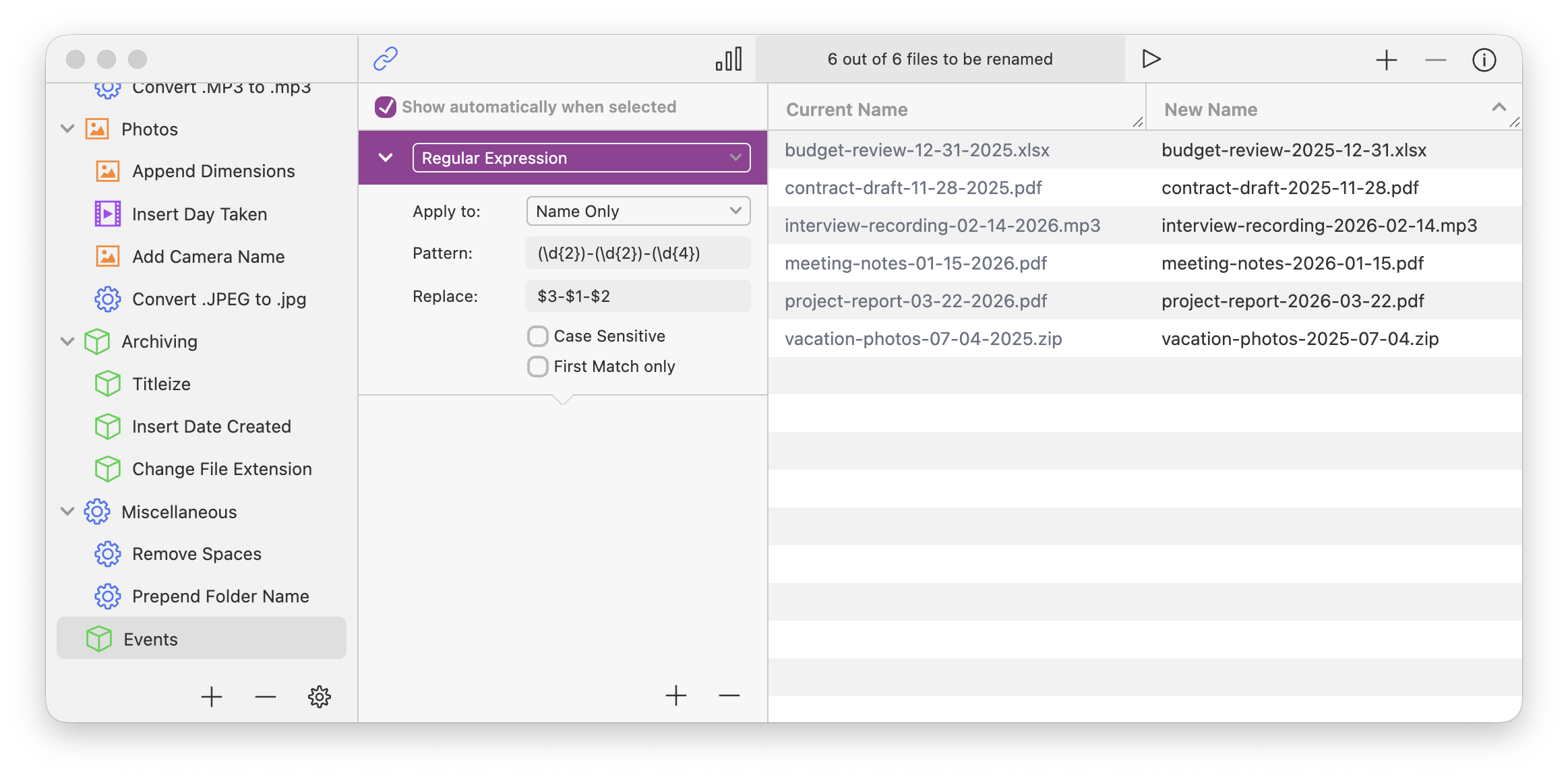
-
Drag the files into Renamer:
Drop the folder you want to rename into the app window. -
Add the "Regular Expression" action:
Find it under the Miscellaneous category in the action list. -
Write your pattern:
Type the regex in the Pattern field. Use parentheses to create capture groups for parts you want to reuse in the replacement. -
Write the replacement:
Type the replacement in the Replace field, using $1, $2, etc. to reference your capture groups. -
Watch the live preview:
Every keystroke updates the preview. Refine until the output column matches what you want, then commit.
Tip: Build complex transformations by chaining multiple regex actions, or by combining regex with simpler actions like Find & Replace and Insert Text. Each action runs in sequence.
Save the workflow and reuse it forever
💾 Save your pattern as a Renamerlet
Once you've built a regex pattern that works, save it as a workflow (we call them Renamerlets). The next time you need the same transformation, drop the files in, click the saved workflow, done.
This is where regex in Renamer earns its place over a one-off shell script. A script lives in a file somewhere, requires you to remember the syntax, and probably needs editing every time you reuse it. A saved Renamerlet sits in the app, named, ready to apply, with a live preview confirming the result before anything happens.
Power users tend to build a small library of regex Renamerlets for recurring tasks: normalizing exports from a specific tool, cleaning up downloads from a specific site, restructuring filenames from a legacy archive.
Why Renamer beats the alternatives
🚩 Why not just write a shell script?
- You want to see what's about to happen before it happens. Live preview shows the result of every regex change in real time. A shell script either works or breaks loudly, and "breaks loudly" can mean 5,000 files renamed wrong before you notice.
- You want to undo a mistake. Renamer's Smart Undo reverses an entire batch in one click, even after you've closed the app. Recovering from a botched mv loop in bash is a different conversation.
- You want to reuse the pattern without remembering the syntax. Save the regex as a Renamerlet, name it, apply it later. Beats keeping a folder of scripts whose purpose you've forgotten.
- You want to chain regex with other actions. Combine a regex match with EXIF date insertion, sequential numbering, or case conversion. Each action is a step; the chain is the workflow.
- Other GUI batch renamers support regex too, but most have weak support (no capture groups, limited syntax) or terrible UX from 2008. Renamer uses PCRE-compatible regex with full capture groups, lookarounds, and standard escape sequences.
Regex syntax reference
Renamer uses PCRE-compatible regular expressions. The most common patterns:
| . | Any single character |
| * | Zero or more of the preceding |
| + | One or more of the preceding |
| ? | Zero or one (or: lazy quantifier) |
| \d | A digit (0–9) |
| \w | A word character (letter, digit, underscore) |
| \s | A whitespace character |
| [abc] | Any one of a, b, or c |
| [^abc] | Anything except a, b, or c |
| ^ | Start of the filename |
| $ | End of the filename |
| (...) | Capture group, referenced as $1, $2, etc. |
| (?:...) | Non-capturing group |