
Renamer
Rename photos by date taken, automatically
Not on Windows? Download for Mac
Renamer reads the EXIF data already inside your photos and renames every file by the date it was taken. Across your entire library. In seconds.
Rename thousands of files at once with reusable workflows. Use AI Assist when you're not sure how to start.
Rated 96% by 1,019 users on Setapp.
The problem with camera filenames
Every photo your camera or phone takes gets a filename like IMG_4471.JPG or DSC_0023.NEF. The number means nothing. It restarts when your camera's counter resets. It collides when you copy photos from a second device into the same folder. And after a vacation, a wedding, or a year of casual shooting, you have thousands of files with names that tell you nothing about when, where, or what they are.
⚠️ Manually renaming a few photos is annoying. Manually renaming ten thousand is impossible.
The information you actually want is already in the photos. Every JPG, RAW, and HEIC file your camera produces stores EXIF metadata: the date and time the shot was taken, the camera and lens used, the GPS coordinates if your camera or phone recorded them, the dimensions, the ISO, the exposure. Renamer reads that data and turns it into filenames you can actually search.
What Renamer does
Quick steps:
-
🗂️
IMG_4471.JPGinto2026-04-23_143022_IMG_4471.JPG -
🗂️
DSC_0023.NEFinto2026-04-23_143047_DSC_0023.NEF -
🗂️
P1010876.HEICinto2026-04-23_143112_P1010876.HEIC
Result: Now your filenames sort chronologically in any file browser. A simple alphabetical sort by name gives you photos in the order they were taken. Spotlight and Windows Search find them by date because the date is in the name. Backups and cloud sync deduplicate cleanly because identical photos finally have identical names.
Quick walkthrough
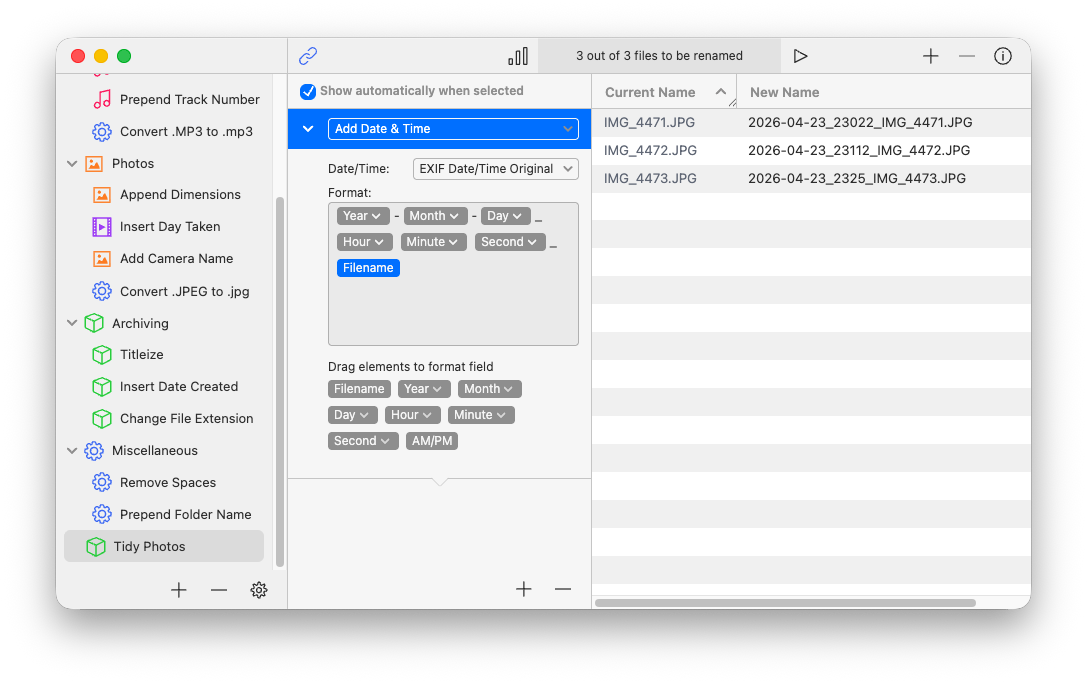
Here's how to set up a basic date-based renaming workflow:
-
Drag the files into Renamer:
Drop your camera or phone photos into the app window (or use File → Add). -
Create a new Renamerlet and call it "Tidy Photos":
Click the + (plus) button in the lower-left to create a workflow, then name it for reuse. -
Add a "Date & Time" action:
Choose the 'Add Date & Time' action and set the source to 'EXIF Date/Time Original'. -
Drag the fields as shown and set their date formatting:
Arrange Year, Month, Day, Hour, Minute, Second (and then Filename) into the format field so the live preview matches the right-hand column.
Tip: Save the Renamerlet and reuse it on future imports to rename thousands of files in seconds.
💡
You can layer in more EXIF fields if you want them: camera model, lens, image dimensions, ISO. Photographers often build patterns like 2026-04-23_NikonZ8_DSC_0023.NEF to keep track of which camera shot which file.
Save the workflow and reuse it forever
💾 Save your workflow for next time
Once you've built a renaming pattern that works, save it as a workflow (we call them Renamerlets). The next time you import photos from a trip, a shoot, or a phone backup, drop the new folder in, click the saved workflow, done. The setup work happens once.
Photographers tend to end up with two or three saved workflows: one for personal phone photos, one for client shoots with a more detailed naming scheme, one for archival imports. Setting them up takes ten minutes; using them takes seconds.
Why this beats the alternatives
🚩 Why not just use Photos or manual renaming?
- The Photos app (Mac) and Photos app (Windows) are good at viewing and lightly organizing, but they don't rename your underlying files; they just show them sorted by date inside their own library. The moment you export, share, or back up outside the Photos app, you're back to
IMG_4471.JPG. - Manual renaming works for ten files. It doesn't work for ten thousand.
- Shell scripts and command-line tools like exiftool can do this, and if you're already comfortable in the terminal they work fine. Renamer is the GUI version: live preview, undo, and saved workflows, without debugging a script at midnight.
- Other batch renamers can rename, but most don't read EXIF data at all. The ones that do typically have UX from 2008. Renamer is built specifically for this.